TABLE OF CONTENTS
Getting Started In Microsoft Teams Video
Meetings are an essential place where work happens in Microsoft Teams — whether you're engaging an important client or catching up on a group discussion.
There are three parts to a Teams meeting:
Before: When you create and send out an invite.
During: When everyone meets.
After: When people share recaps and action items.
Here are the basics of how to get started with meetings in Teams.
Before a meeting
Create a meeting and discover how to adjust your settings before you join one:
Go to your Calendar and select New meeting.
Add people to the invite, such as colleagues in your organization or external guests.
Add a location or make it an online meeting.
Type an agenda.
Check the Scheduling Assistant to make sure your proposed time works for everyone.
Choose to automatically record a meeting in case someone can't make it and select Send.
Join a meeting from an email, a channel, a mobile device, or your calendar
Choose your meeting settings from the pre-join screen, and select Join now.
During a meeting
Explore how to interact with others in a meeting:
Avoid the frustration of speaking over other people and select Raise your hand to share your thoughts.
Add your questions to the meeting chat to avoid interrupting a speaker.
Select React and choose a reaction to express how you feel in real-time.
Select Share to show a presentation, a window, or your entire screen.
After a meeting
Revisit documents and follow up with people after the meeting's done:
Go to your calendar invite to view shared files, the meeting recording, or transcript.
Share notes or action items with your team.
How to Join a Teams Meeting Video
Join a Teams meeting from the app
Select Calendar
 in Teams.
Select a meeting and select Join.
From the pre-join screen:
Adjust your camera and mic settings.
Select Effects and avatars
 to choose a background effect.
Select Join now.
Join a Teams meeting on the web
Don't have the Teams app? You can still join a Teams meeting.
In your email invite, select Join the meeting now.
You can also use a dial-in number and conference ID from the email to call in.
You have three choices:
Download the Windows app: Download the Teams desktop app.
Continue on this browser: Join a Teams meeting on the web.
Open your Teams app: If you already have the Teams app, go right to your meeting.
Type your name.
Adjust your audio and video settings.
Select Join now.
Depending on meeting settings, you'll get in right away or join the lobby until someone in the meeting admits you.
How to Manage Teams Meetings Video
View meetings
Select Calendar
 to view your past and upcoming meetings.
Your Teams calendar syncs with your Outlook calendar.
Select a meeting invite to see meeting details and who's attending, and to respond to the meeting.
Schedule a meeting
Go to your Teams calendar.
Select New meeting
 .
.Add your meeting title, start and end times, and other details.
Enter names in the Add required attendees field to invite them to the meeting.
Note: To invite someone outside your organization, type in their email address and they'll get an invite to join as a guest — even if they don't have Microsoft Teams.
Select the Scheduling assistant to see everyone's availability in a calendar view.
Select Save after you've added all your meeting details.
How to start an Instant Meeting
If you don't have meeting scheduling capability in Outlook or Teams, starting an instant meeting is a great option. Just like with scheduled meetings, everyone who attends your meeting will continue to have access to the meeting chat, the recording, and anything else people share in the meeting (like files and meeting notes), even after the meeting ends.
There are a couple of different ways to get an impromptu meeting going with just a few clicks.
From your calendar
Go to Calendar
 on the left side of Teams, then select Meet now
  in the upper right corner.
Edit the Meeting name and select Get a link to share to share a link to the meeting.
If you select Get a link to share, you'll have the option to select Configure meeting options, where you can change meeting options.
When you're ready, select Start meeting to open the meeting pre-join screen.
Select Join now to enter the meeting.
In a channel
To start an instant channel meeting:
Choose the channel you want to meet in from your chat and channels list.
Depending on your channel layout, select Meet now
 or Meet now
  in the top-right corner.
Select Join now.
To keep the context of a specific conversation, choose Reply below any post. In the compose box, select Actions and apps
 > Meet now
  .
.
All channel meeting conversations will appear as their own threads in the channel’s Posts or Conversations feed. To learn more about chat in channel meetings, see Channel meetings in Microsoft Teams.
From a group chat
Instant meetings in group chats are a way to meet with members of a chat spontaneously, without disrupting or ringing others. Group chat meetings are also a way to make sure meeting recordings and messages all stay in the same place.
To start an instant meeting from a group chat:
Open the group chat you want to start an instant meeting in.
At the top of the chat, select Meet now
 .
.After you start an instant meeting in a group chat, others will see from their chat list that a meeting has started in that group chat.
They can open the group chat and select Join to enter the meeting.
Select the live indicator at the top of the group chat to view participants.
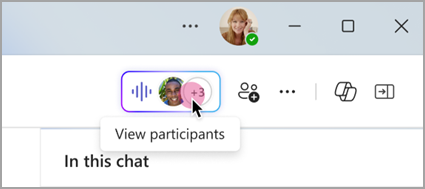
Select Ring others to join to notify others in the group chat about the instant meeting.
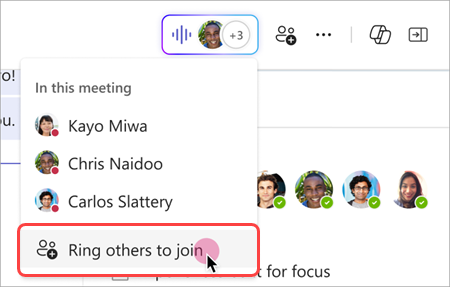
To ring individual people, select their names and select Ring.
To ring everyone who isn't in the instant meeting, select Ring all.
Select Leave from your call window to leave the instant meeting.
Note: If you're not the last person to leave an instant meeting, you can rejoin by opening the group chat and selecting Join. When the last person leaves the meeting, everyone will be notified that the meeting has ended.
From chat using commands
Start an instant meeting in any chat using commands.
To start an instant chat meeting:
Open the chat conversation you want to start an instant meeting in.
Type /meetnow in the compose box.
Press the Enter or Tab key on your keyboard.
To learn more, see Use commands in Microsoft Teams.
Invite people
After you join the meeting, you'll see a prompt to invite others.
Select Copy meeting link
 to copy and share a link to the meeting that others can click to join.
Select Add participants to open People
 > Participants in the meeting, where you can search attendee names into the Invite someone or dial a number field. Hover over someone's name and select Request to join to call them into your meeting.
Select Share via default email to launch your default email app with an automatically generated email invite. Enter recipients and send the email to invite them.
You can always add people later by selecting People in your meeting controls. Select Share invite  to notify others about your meeting via link or email.
To rejoin the same meeting anytime, find the meeting chat in your chat list and select Join.
Tips for Microsoft Teams Video
Preview your video
When you're in a meeting, preview your video before you turn on your camera:
Select the dropdown arrow next to Camera
 to preview your video.
Preview how you'd like to appear:
Select Standard blur to blur your background.
Select More video effects and settings to preview a custom background or add your own.
When you're ready, select Apply and turn on video.
To learn more, see Use video in Microsoft Teams.
Share your screen
In your meeting controls, select Share
 to present your screen. You can share:
Your desktop
Your windows
PowerPoint presentation
Whiteboard
To learn more, see Present content in Microsoft Teams meetings.
Raise your hand and show reactions
Select React
 to choose a reaction to engage in a meeting:
Select Raise
 to let others know you'd like to speak up without interrupting the conversation.
To learn more, see Express yourself in Microsoft Teams meetings with live reactions.
Spotlight a video
When a featured speaker's talking, spotlight their video so it's the main one everyone sees.
Right-click the video or avatar of the presenter you want to spotlight. Then, select Spotlight
 .
.Select People
 to see a list of everyone in the meeting. In the list, right-click the name of the person whose video you want to highlight and select Spotlight for everyone
  .
.
To learn more, see Spotlight someone's video in Microsoft Teams meetings.
Choose a video layout
There are different video layouts for your meeting. On the meeting controls, select View  and choose one:
Gallery
 : This is the default view that shows a 3x3 video layout.
If there's more than nine people, Teams prioritizes anyone with their video turned on, or those speaking the most.
Speaker
 : This view brings the focus on whoever is currently speaking.
Large gallery
 : This is a 7x7 video layout that lets you see up to 49 other people at once.
10 people must have their camera turned on. If no one's sharing video, Large gallery can't be selected from the menu.
Together mode
 : This layout lets you feel like you're in the same shared space with everyone in the meeting. Select Change scene to change the background for everyone.
Together mode is available if there's at least five people in a meeting.
To learn more, see Customize your meeting view in Microsoft Teams.
Create breakout rooms
Create and open breakout rooms to let attendees hold smaller, more focused discussions.
On the meeting controls, select Rooms
 .
.Choose how many rooms you need and how to assign participants.
Select Create rooms > Start rooms.
Was this article helpful?
That’s Great!
Thank you for your feedback
Sorry! We couldn't be helpful
Thank you for your feedback
Feedback sent
We appreciate your effort and will try to fix the article