If you’ve forgotten your password or been locked out, you can reset it yourself using the link below — no IT ticket required.
Password Reset URL: https://passwordreset.microsoftonline.com
Before You Begin
You must have previously registered at least one verification method (such as the Microsoft Authenticator app) to use self-service password reset. If you have not registered, contact IT at it@quiltsoftware.com.
Step 1: Go to the Sign-In Page
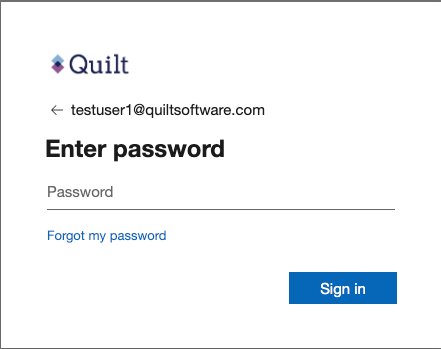
Navigate to your Quilt account sign-in page. Enter your @quiltsoftware.com email address, then click Forgot my password below the password field.
Step 2: Identify Your Account
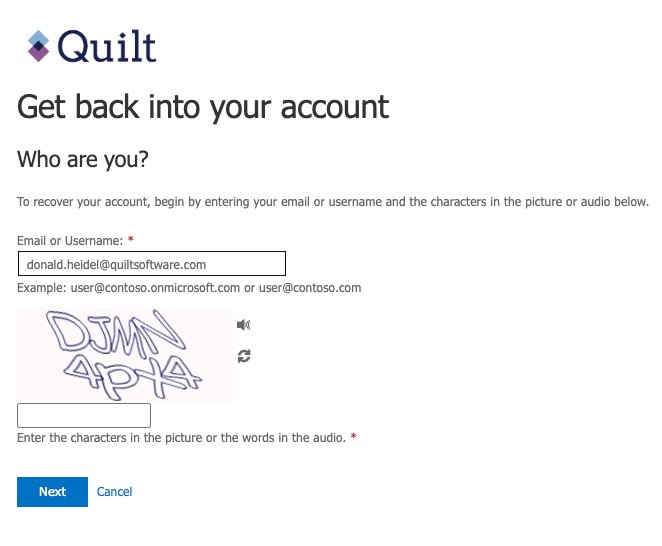
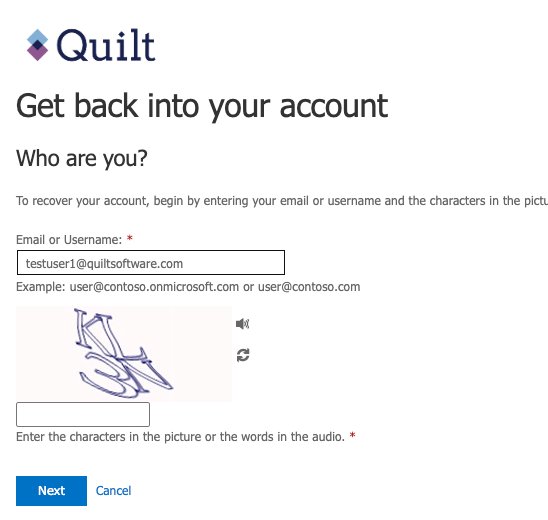
On the “Get back into your account” page:
- Your email address will already be filled in. Confirm it is correct.
- Type the characters shown in the CAPTCHA image into the text box below it. If you can’t read the image, click the audio icon to hear it, or the refresh icon to get a new one.
- Click Next.
Step 3: Verify Your Identity
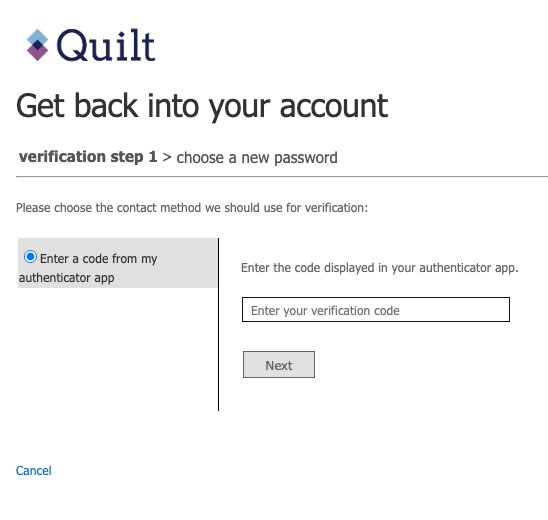
You will be prompted to verify your identity using a method you previously registered.
If you registered Microsoft Authenticator:
- Select “Enter a code from my authenticator app”.
- Open the Microsoft Authenticator app on your phone.
- Find the Quilt Software entry and copy the 6-digit code shown.
- Enter the code in the verification box on screen.
- Click Next.
Note: Authenticator codes expire every 30 seconds — enter the code promptly.
Step 4: Choose a New Password
Once your identity is verified:
- Enter your new password in the “Enter new password” field. A password strength indicator will appear as you type.
- Re-enter the same password in the “Confirm new password” field.
- Click Finish.
Password requirements: - At least 8 characters - Must include uppercase and lowercase letters, a number, and a special character - Cannot be a recently used password
Step 5: Confirmation
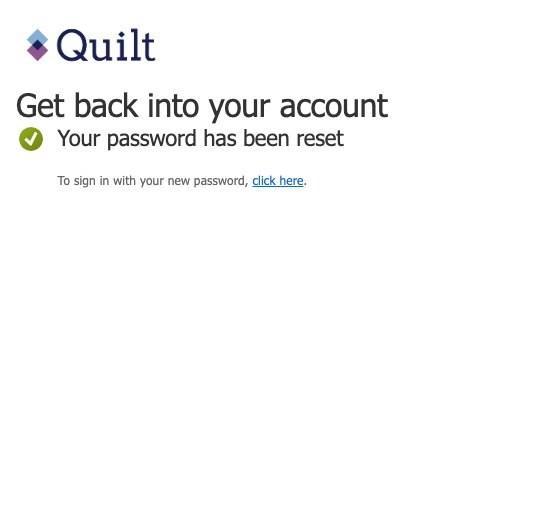
You will see a green checkmark and the message “Your password has been reset.”
Click the “click here” link to sign in with your new password.
Troubleshooting
Issue | What to Do |
“We don’t have enough information on file” | You haven’t registered verification methods. Contact IT. |
Authenticator code is rejected | The code may have expired — wait for a new 6-digit code and try again immediately. |
New password is rejected | Ensure it meets all complexity requirements and isn’t a recently used password. |
Still can’t sign in after reset | Wait 2–3 minutes for the change to sync, then try again. |
None of the above helps | Submit a ticket at it@quiltsoftware.com or contact IT via Slack #it-help. |
Document maintained by Quilt Software IT. Last updated: June 2026.
Was this article helpful?
That’s Great!
Thank you for your feedback
Sorry! We couldn't be helpful
Thank you for your feedback
Feedback sent
We appreciate your effort and will try to fix the article