Purpose: Your Outlook email signature is managed by RocketSeed, which pulls contact information directly from Rippling. If your phone number is missing or incorrect in your signature, you need to update it in Rippling — the change will sync automatically to RocketSeed.
Steps
1 | Log in to Rippling Go to app.rippling.com and sign in with your Quilt credentials. |
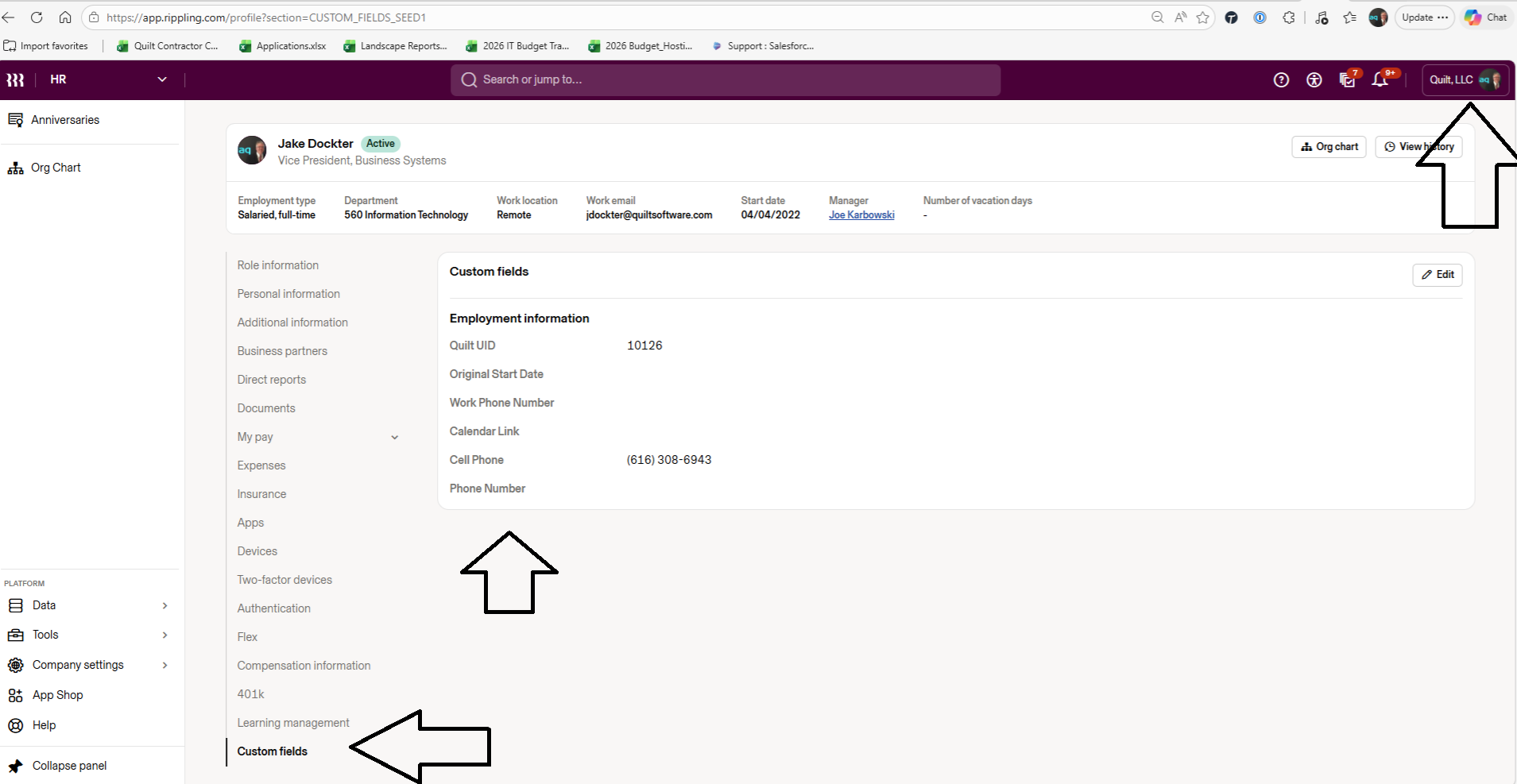
2 | Click your profile in the upper right Look for your name or avatar in the top-right corner of the screen and select "My Profile." |
3 | Navigate to the "Custom Fields" tab In your profile, scroll down in the left-hand menu and click "Custom fields." |
4 | Find the "Work Phone Number" field Under the Employment Information section, locate the Work Phone Number field. |
5 | Click "Edit" and update your number Click the Edit button (top right of the Custom fields panel), enter your correct phone number, then save. |
6 | Allow up to 24 hours to sync RocketSeed will automatically pull the updated number. Your email signature will reflect the change on the next sync cycle. |
Reference Screenshot
The Custom Fields tab in Rippling shows "Work Phone Number" under Employment Information (arrow on left). Click "View history" (upper right) or "Edit" to update your fields.
? Note: If you need help or the field is locked, reach out to IT via the #quilt-it-support Slack channel. |
Was this article helpful?
That’s Great!
Thank you for your feedback
Sorry! We couldn't be helpful
Thank you for your feedback
Feedback sent
We appreciate your effort and will try to fix the article