How to sign in to Ring EX and Ring CX using Single Sign-On (SSO)
Overview
Quilt Software uses Single Sign-On (SSO) to provide secure, streamlined access to our RingCentral phone and contact center systems. With SSO, you sign in using your Quilt-assigned email address and are automatically authenticated through our company’s identity provider — no separate RingCentral password needed.
This guide covers SSO login for both platforms:
Ring EX – Our business phone system (calls, messaging, video) Ring CX – Our contact center platform (agent queues, call routing) |
Important: You must use your Quilt-assigned email address for SSO login. Personal email addresses will not work.
Signing in to Ring EX
Ring EX is our business phone system used for calls, messaging, and video meetings. Follow these steps to sign in using SSO.
1. Go to the RingCentral Service Portal
Open your web browser and navigate to service.ringcentral.com
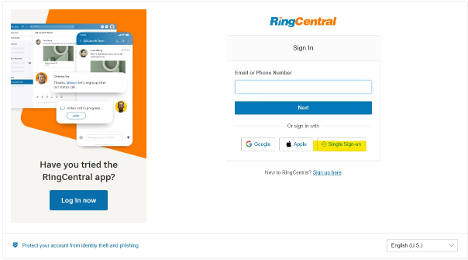
2. Select "Single Sign-on"
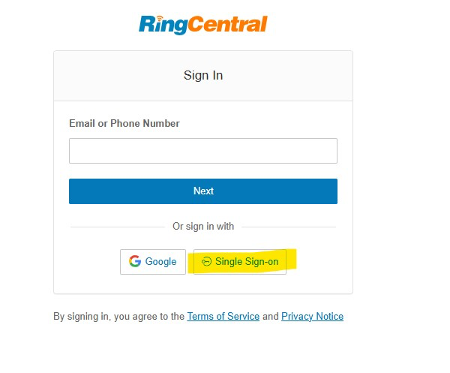
On the Sign In page, click the Single Sign-on button at the bottom of the login form (shown highlighted below).
3. Enter your Quilt email and submit
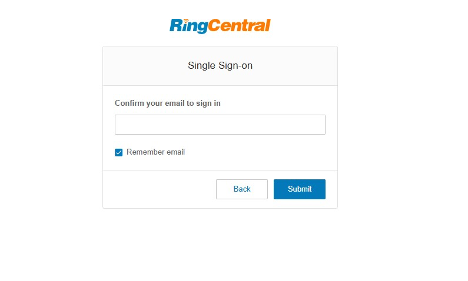
On the Single Sign-on confirmation screen, enter your Quilt-assigned email address and click Submit. You will be redirected to our company’s identity provider to complete authentication.
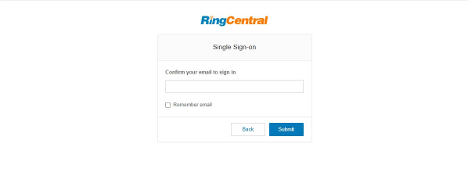
Tip: Check the “Remember email” box to save your email for future logins.
Signing in to Ring CX
Ring CX is our contact center platform used by agents and supervisors. Follow these steps to sign in using SSO.
1. Go to the Ring CX Portal
Open your web browser and navigate to ringcx.ringcentral.com
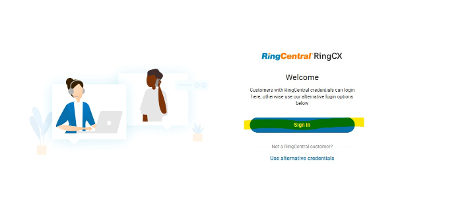
2. Click "Sign in"
On the RingCentral RingCX Welcome page, click the Sign in button.
3. Select "Use Another Account" (if prompted)
If you see a screen with previously saved accounts, click Use Another Account to enter your Quilt credentials.

4. Enter your email and select "Single Sign-on"
On the RingCentral Sign In page, enter your Quilt-assigned email address, then click the Single Sign-on button (shown highlighted in yellow below).
5. Confirm your email and submit
On the Single Sign-on confirmation screen, verify your email address is correct and click Submit. You will be redirected to our company’s identity provider to complete authentication.
Tip: Check the “Remember email” box to save your email for future logins.
Troubleshooting
If you encounter issues signing in, try the following:
- Make sure you’re using your Quilt-assigned email address. Personal email addresses (Gmail, Yahoo, etc.) will not work with SSO.
- Clear your browser cache and cookies if you see an error after entering your email, then try again.
- Try a different browser (Chrome, Edge, or Firefox is recommended).
- Check your internet connection. SSO requires a stable connection to authenticate.
- Contact IT Support if the issue persists. Please include a screenshot of any error message you see.
Quick Reference
| Ring EX | Ring CX |
URL | service.ringcentral.com | ringcx.ringcentral.com |
Login Method | Single Sign-on button | Sign in → Single Sign-on |
Email Required | Quilt-assigned email | Quilt-assigned email |
Was this article helpful?
That’s Great!
Thank you for your feedback
Sorry! We couldn't be helpful
Thank you for your feedback
Feedback sent
We appreciate your effort and will try to fix the article